Menu
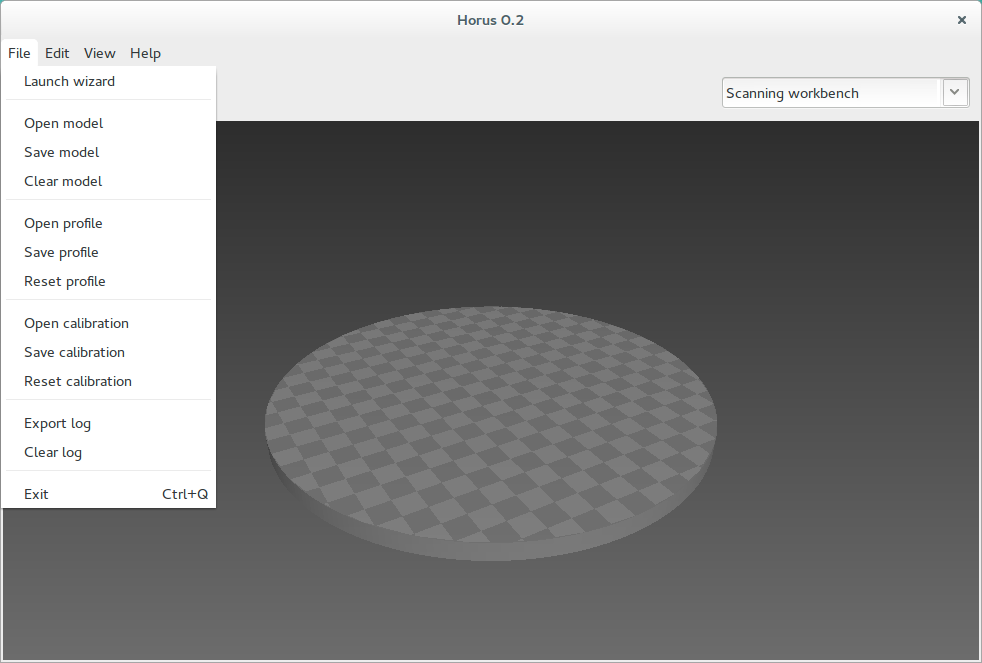
File
- Launch wizard: opens the Wizard.
- Open model: opens a 3D model (ply point cloud or stl mesh).
- Save model: saves the point cloud of the 3D scene in ply format.
- Clear model: removes the current 3D model from the 3D scene.
- Open profile: loads all the control, adjustment and scanning parameters.
- Save profile: saves all the control, adjustment and scanning parameters in JSON format.
- Reset profile: resets all the control, adjustment and scanning parameters to the default values.
- Open calibration: loads all the calibration parameters.
- Save calibration: saves all the calibration parameters in JSON format.
- Reset calibration: resets all the calibration parameters to the default values.
- Export log: saves a log file with the registry of the previous commands.
- Clear log: removes the log file. It is automatically removed each 7 days.
- Exit: closes the application.
Edit
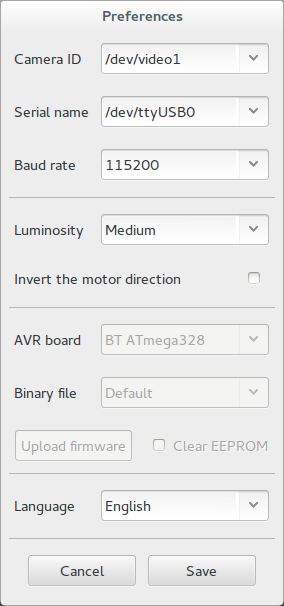
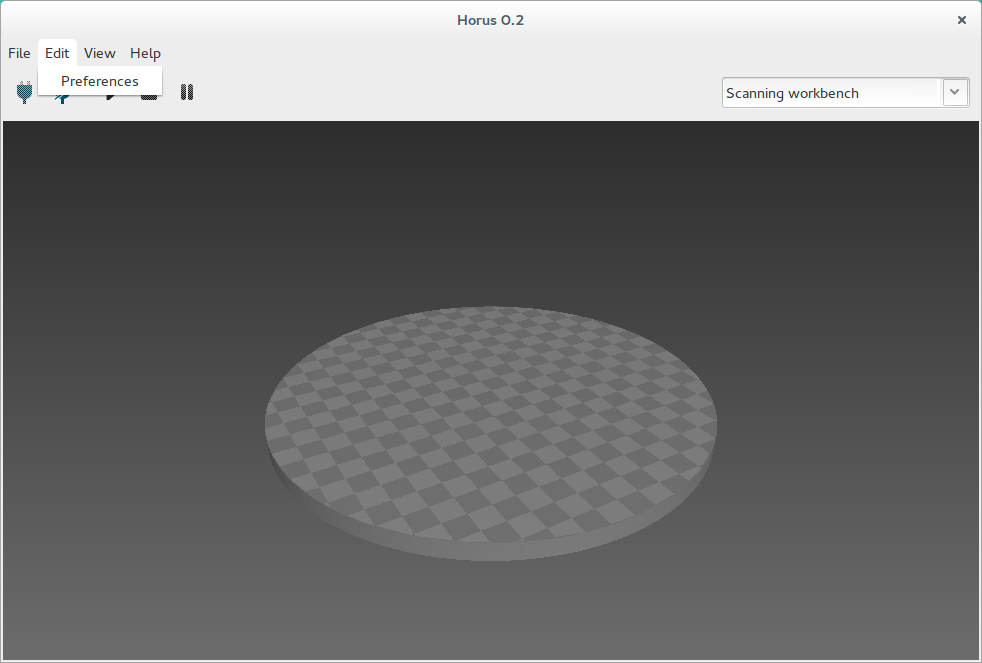
Preferences: opens the complete preferences window:
- Connection section: Camera ID, Serial name and Baud rate.
- Adjustment section: Luminosity and Invert the motor direction.
- Firmware section: allows to upload the default or a selected firmware to BT ATmega328 and Arduino UNO boards. Also, it can clear EEPROM before uploading the firmware.
- Language section: allows to select the application’s current language.
Note
The Firmware section is only enabled if the scanner is disconnected.
View
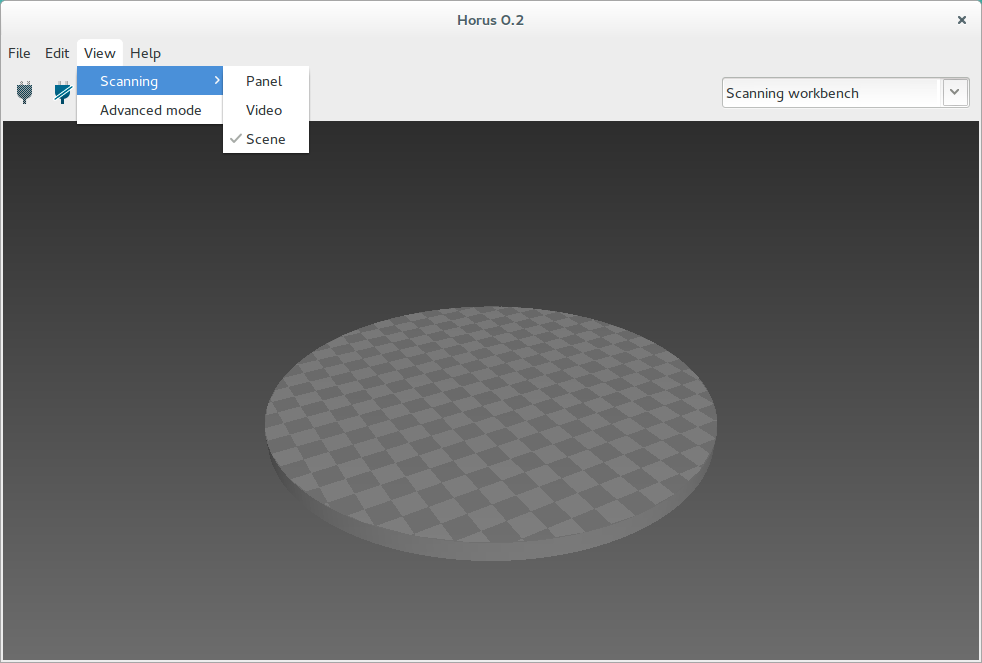
This menu shows and hides the Scanning workbench panels: the configuration panel, the video and the 3D scene.
It also contains the Advanced mode option, that enables advanced options in Calibration workbench.
Help
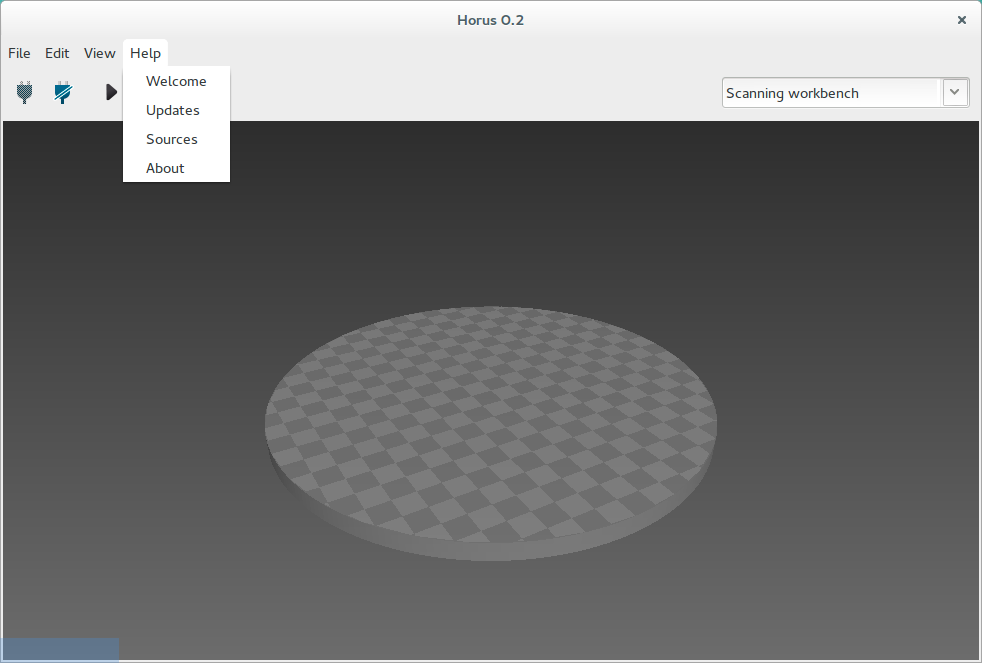
In this menu you can open the Welcome window, check for updates and to access to project’s web resources.